Online Portal
The Online Portal is a flexible system that allows you to manage users, control access, and deliver the right content to the right audience.
Portal Settings
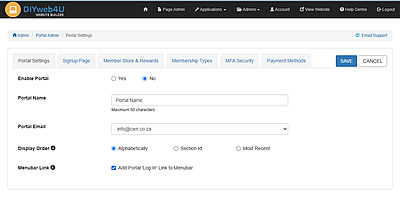
- Portal Setup: Enable/Disable the Portal, Portal Name, Portal Email, Display Order (The order the Sections are displayed in the Portal - Alphabetical, Section Id, Most Recent), Menubar Link (Add the Portal Log In link to the menubar)
- Signup Page: Enable the Signup Page (If enabled, a portal-signup page is published which includes the description and message), Portal Description, Portal Message
- Member Store & Rewards: Enable the Member Store (If enabled, a 'Store' link will be added to the Portal for members to access and redeem items/services), Store Name, Description, Message, Rewards (Points-based via the Store - Allocate points to members, Money-based via the Shop - Apply discount to products)
- Membership Types:
- All Members
- Free Membership
- Paid Membership (Fee with optional Recurring)
- Tiered Membership: Setup per Role (Allocate Membership Type and Fee per Role)
- All Members
- MFA Security: Disable, Optional, Mandatory (with optional Grace Period)
- Payment Methods: Pay on Invoice, Direct EFT, Payfast, Yoco, PayShap
Manage Users & Roles
- Manage Users: List of Users with Membership Info, Role, Email Login Credentials, Edit User, Delete User, Account Paused, Account MFA Enabled.
- Add User: Manual registration through the Admin Panel does not support paid membership processing.
Account Status Enable/Pause, Username (Automatically generated), Role List, Select Existing Subscriber (Optional, select existing User from Subscriptions Admin), Name, Surname, Email, Reward Points (Optional, add points for the User to redeem via the store) - Edit User: Account Status Enable/Pause, Role List, Name, Surname, Email, Reward Points, Reset Password, Reset MFA (If MFA enabled)
- Email Login Credentials
- Download Users List (CSV)
- Add User: Manual registration through the Admin Panel does not support paid membership processing.
- Manage Roles: Add, Edit, Delete
- Content: is assigned to one or more roles to specify who can access it.
- Users: are each assigned to a single role.


Manage Sections & Content in the Portal Dashboard
- Sections: Sections are used to display content in groups
Name, Description, Content Type (Pages, Links, Lists), Colour (Applied to the Section Head), Display Order (The order the content is displayed inside the Section. Alphabetical, Content Id, Most Recent) - Content: There are 3 types of content:
- Pages for content that contains text, images, links and forms
Title, Description, Section, Assigned to Role or Specific User, Content, - Links for displaying links to files or websites
Title, Description, Section, Assigned to Role or Specific User, Link, - Lists for displaying tables of information
Title, Description, Section, Assigned to Role or Specific User, Define Table with Columns.
- Pages for content that contains text, images, links and forms

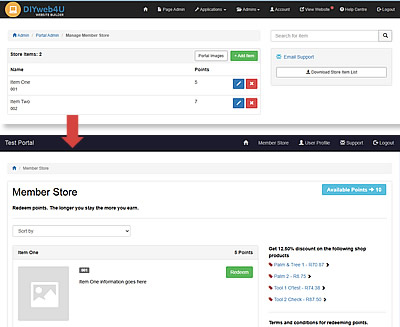
Manage Member Store
Enabled in Portal Settings
- Manage Store: Add/Edit items or services that have a points value which are redeemable in the Portal. (Item Code, Name, Description, Image/s, Points)
- If you have a Shop enabled: Promote shop items at a discounted price to members logged into the Portal. (Shop Admin Edit Product - Add Product to Portal Member Store)